
Image Sharpen
Upload a soft, out of focus, or lightly shaken shot, and the image sharpen pass in Imgupscale rebuilds the edges where detail went missing, so you sharpen blurry photo files with a preview before you download.


Drop, paste, or click (Supports .jpg, .png, .webp)
What Image Sharpen Handles Well
Photos go soft for different reasons, so image sharpen sends each one down its own path when you sharpen photo online.
Sharpen Text in Image Scans
Meeting screenshots, photographed handouts, and scanned tables often blur at the letters. Image sharpen locates those soft text blocks and rebuilds the edges so the words read clearly when enlarged, with no reading, reordering, or correcting of a single character.
Sharpen Old Photo Scans at Home
A scan of a decades old family picture can smear soft across faces and background. Image sharpen rebuilds the detail, scratches and grain are cleared, and color can be added if you want it, all grounded in what the print already holds.
Sharpen Anime Image Frames
Anime frame grabs and Midjourney or Stable Diffusion renders can arrive hazy at the line work. Sharpen the soft spots first, then enlarge the same file to the size you need while the edge lines hold, and paste a prompt to steer the detail when the scene calls for it.
Handheld Candids That Came Out Soft
Kids, pets, and stage moments caught in a hurry often carry a little handshake blur. Upload one and the path for camera shake works the soft spots, so the subject reads sharp again while the steady parts stay as they were.
Who Leans on Sharper Photos
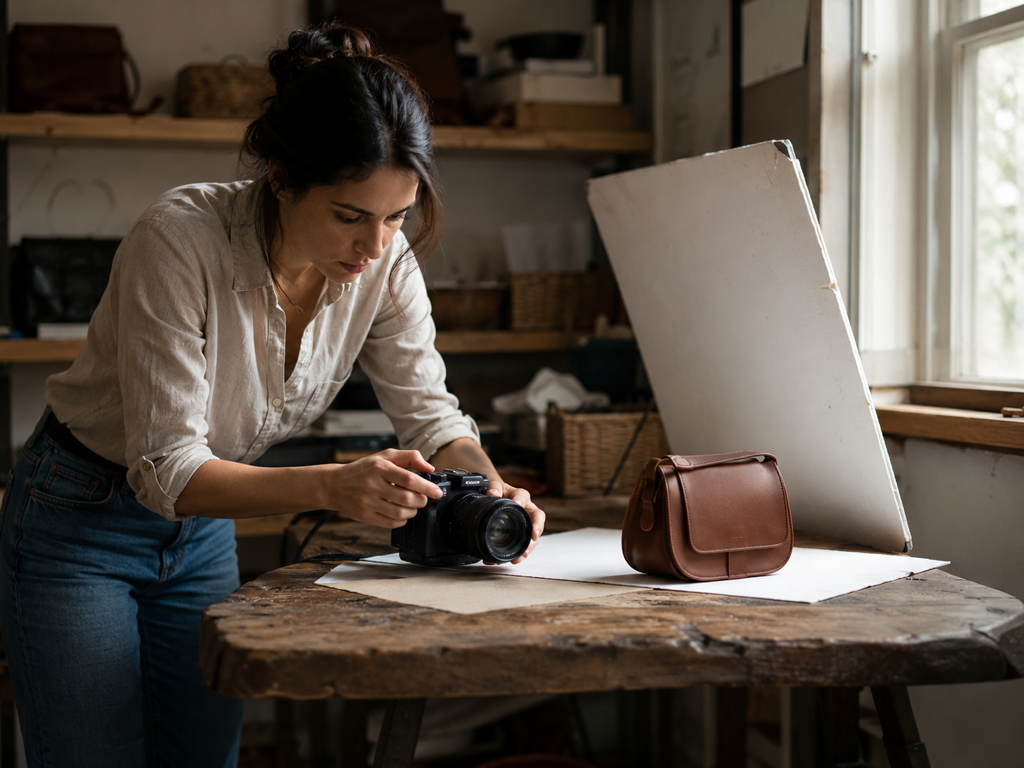
Sellers fixing product shots
You photograph your own inventory, and some frames land with soft focus and mushy texture on the product, and you want them crisp before the listing goes live.
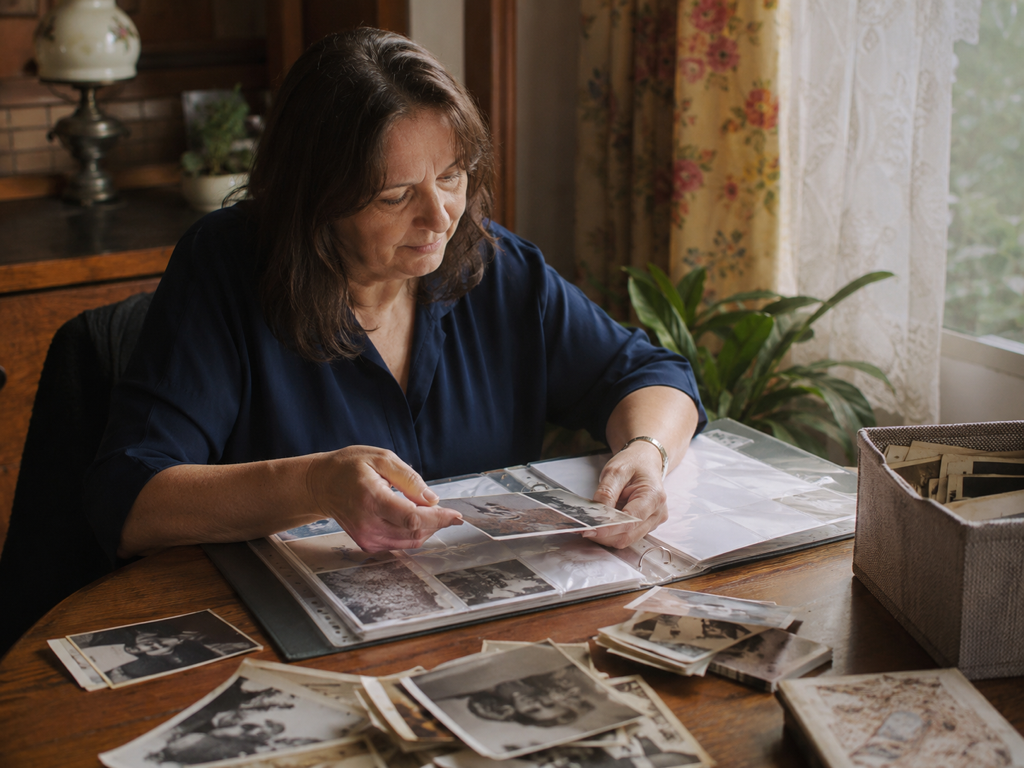
Families saving old prints
You are working through a box of scanned prints that look faded and soft, and you want one clean copy of each to keep and to share with relatives.
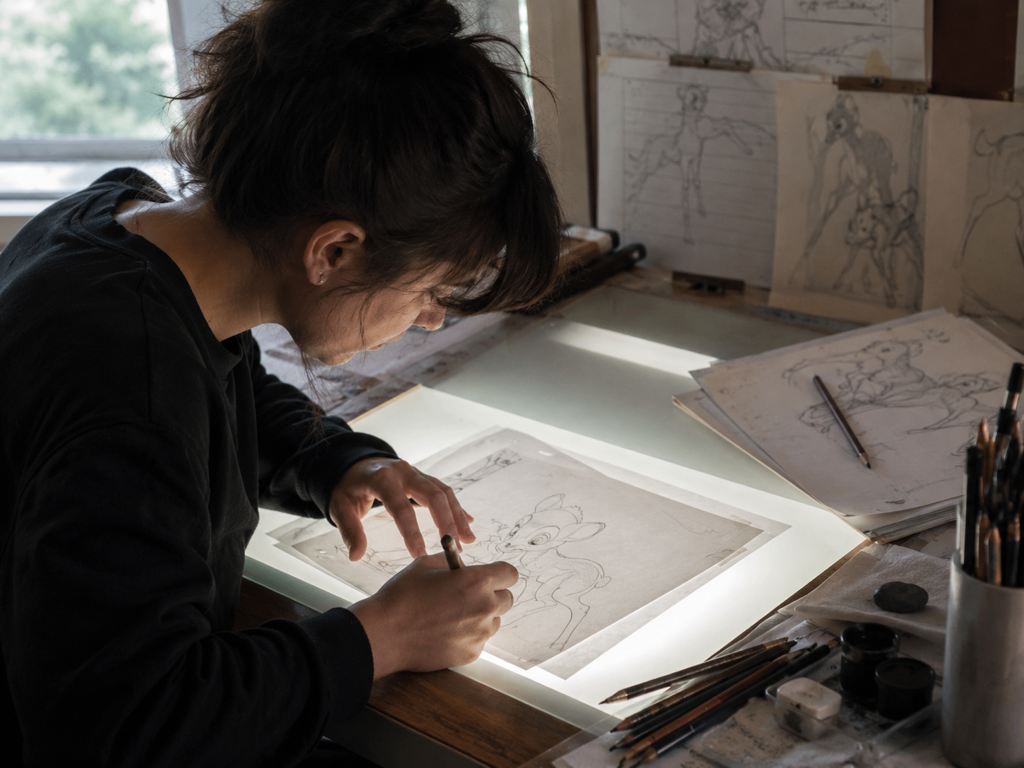
Artists tidying up renders
You post anime frames and AI art that come out a little soft on the line work, and you want them clean before enlarging for a print or a feed.
Image Sharpen Built for Real Files
The parts of image sharpen that decide whether a soft file comes back usable.
Only the Soft Areas Get Rebuilt
Image sharpen first finds the parts of the frame that went soft, then rebuilds the edges and texture only there and leaves the already sharp areas alone. That targeting is what ai image sharpen looks like when it works the problem, not the whole picture.
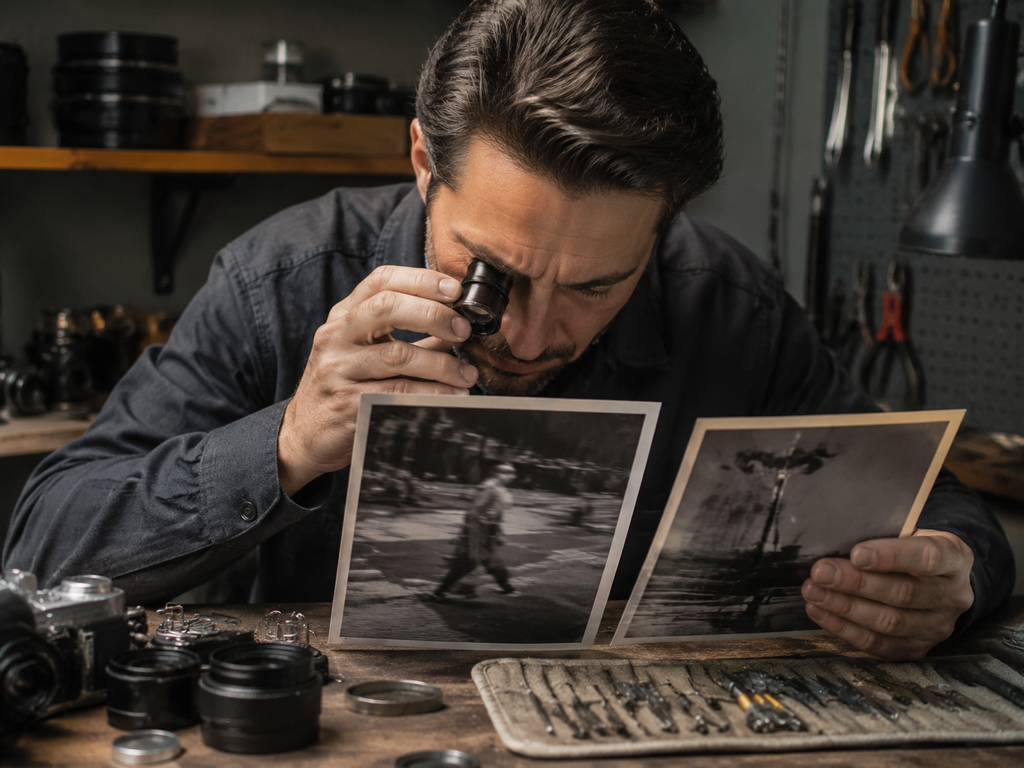
A Path Matched to the Blur
Handshake, missed focus, and a soft lens each leave their own kind of blur, so the photo sharpening here follows the path that fits the cause instead of dragging one filter across everything.
Automatic First, Yours to Adjust
Every file is routed on its own to a model that suits its type, a portrait, an old photo, anime, or an AI render. When you want control, pick the model yourself or choose a scene and the settings fill in, so this sharpen photo step fits more than one kind of image.
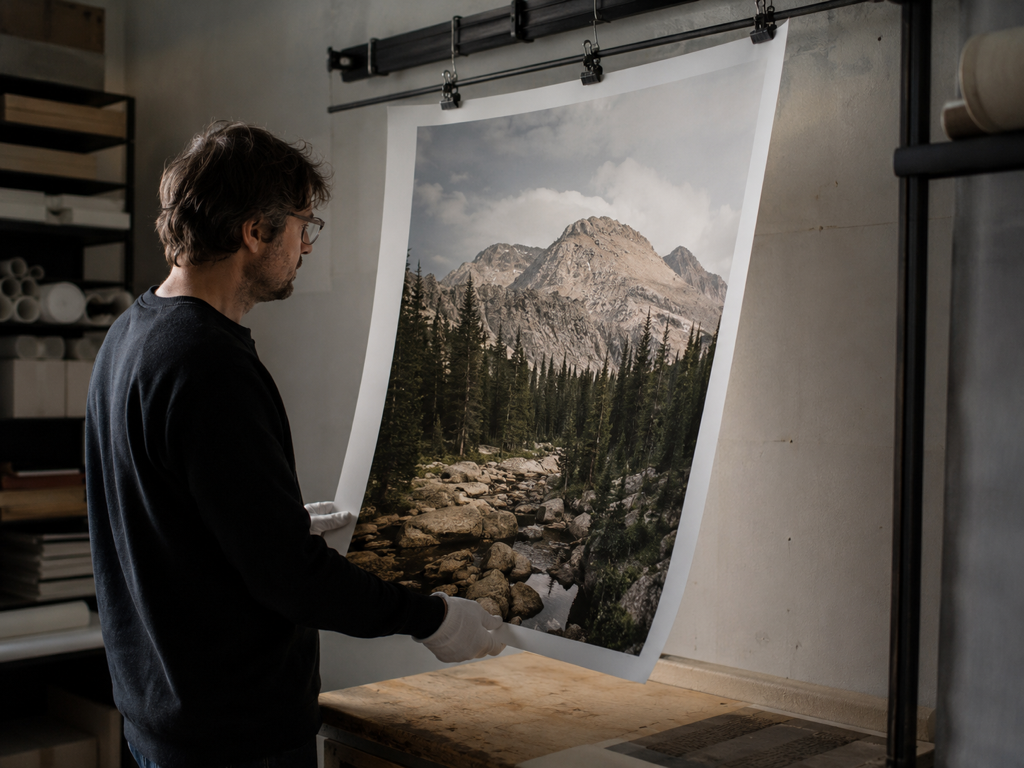
Sharpen Now, Enlarge in One Pass
Once image sharpen brings the detail back, keep going in the same workflow and enlarge the file up to 8K, so a listing crop or a print proof reaches full size in one sitting.
From Soft Photo to Sharp Download
Image sharpen online runs in three steps, from a blurry upload to a file you can use.
Upload your soft shots
Add one soft or blurry image or a batch at once in JPG, PNG, or WEBP, and your files land in your account space so you can come back to them later.
Let it run or take over
By default image sharpen matches a model to each file, follows the path for the blur it finds, and rebuilds only the soft regions. To steer it, choose a model or a scene, and for anime or AI art you can paste a prompt to guide the detail.
Compare, then download or enlarge
Check the before and after side by side, switch the model or scene and rerun if it is not right, then download the image sharpen result or enlarge it further in the same workflow up to 8K.
Image Sharpen Questions, Answered
Ready to Sharpen That Soft Shot
Upload a soft image, let the image sharpen pass in Imgupscale rebuild the edges, and enlarge to the size you need in one go.